After activating the Custom Order Status extension, a new “Order Statuses” option will appear under the WooCommerce navigation menu in your WordPress Admin panel. Click to access the extension settings.
Creating custom statuses
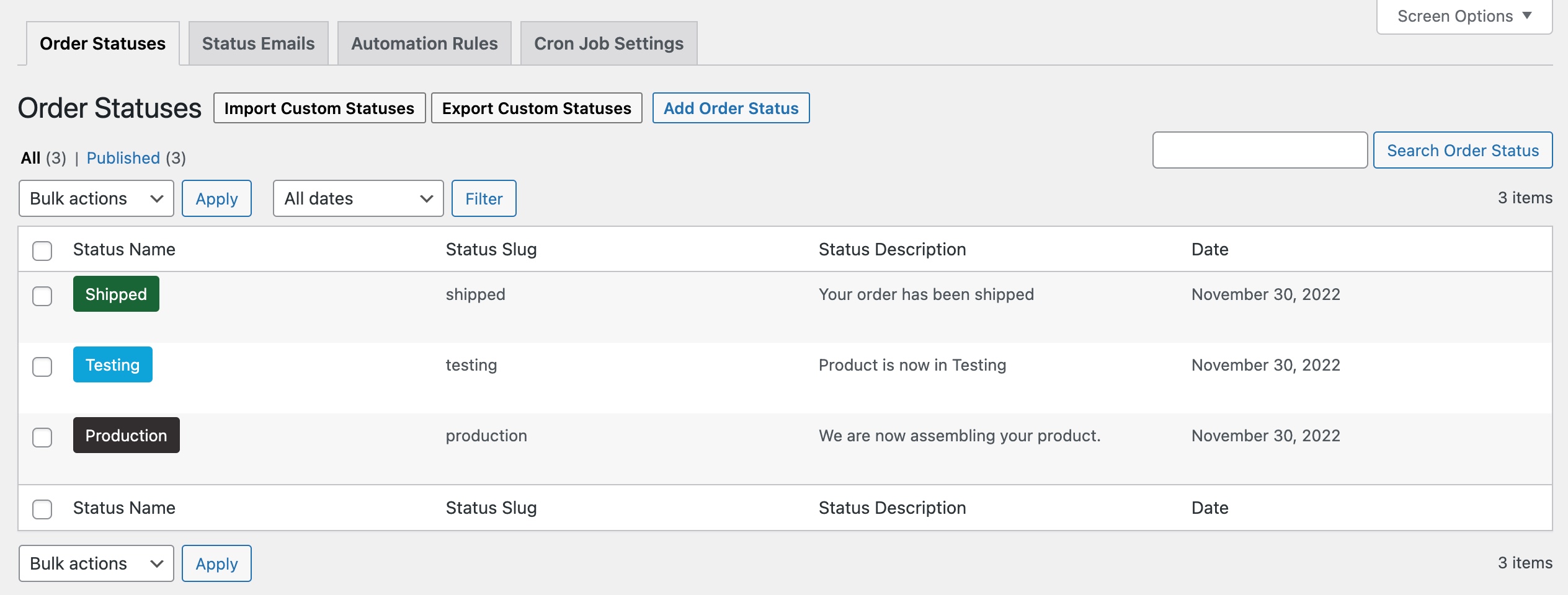
You can create multiple custom order statuses from within the WooCommerce > Order Statuses > Order Statuses tab. Click Add New to add a custom status or to import using a CSV file.
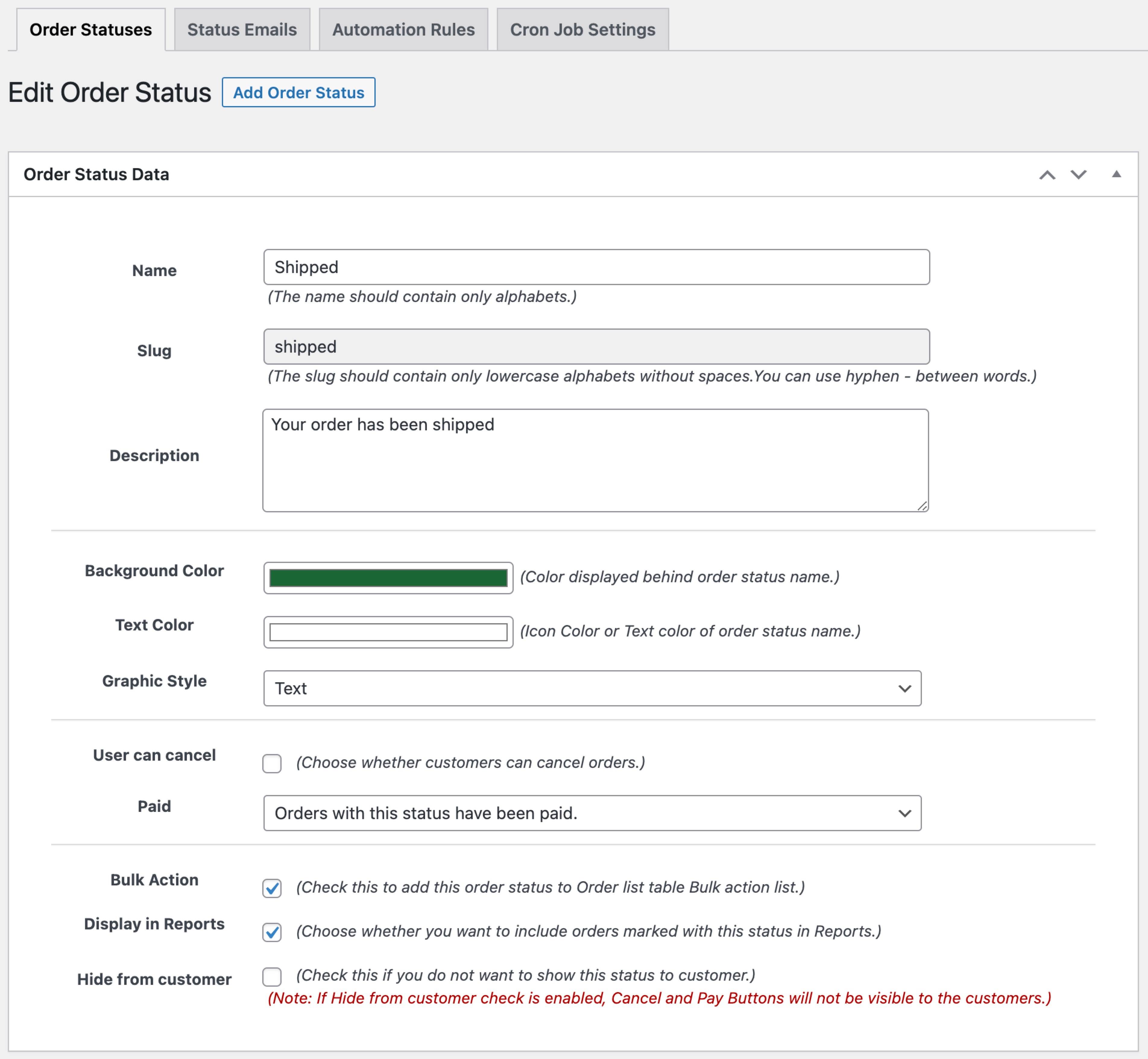
When creating a new custom status, you can:
Add status title, slug and description
Choose a text or icon-based order status
Customize icon, text and background color
Allow users to cancel orders with the specified status
Set payment status
Orders are neither paid or nor require payment
Orders with this status have been paid
Orders with this status require payment (similar to pending payment).
Include in bulk action of order listing page
Hide this status from customers (My-Account orders listing & order detail page)
Exclude order from report
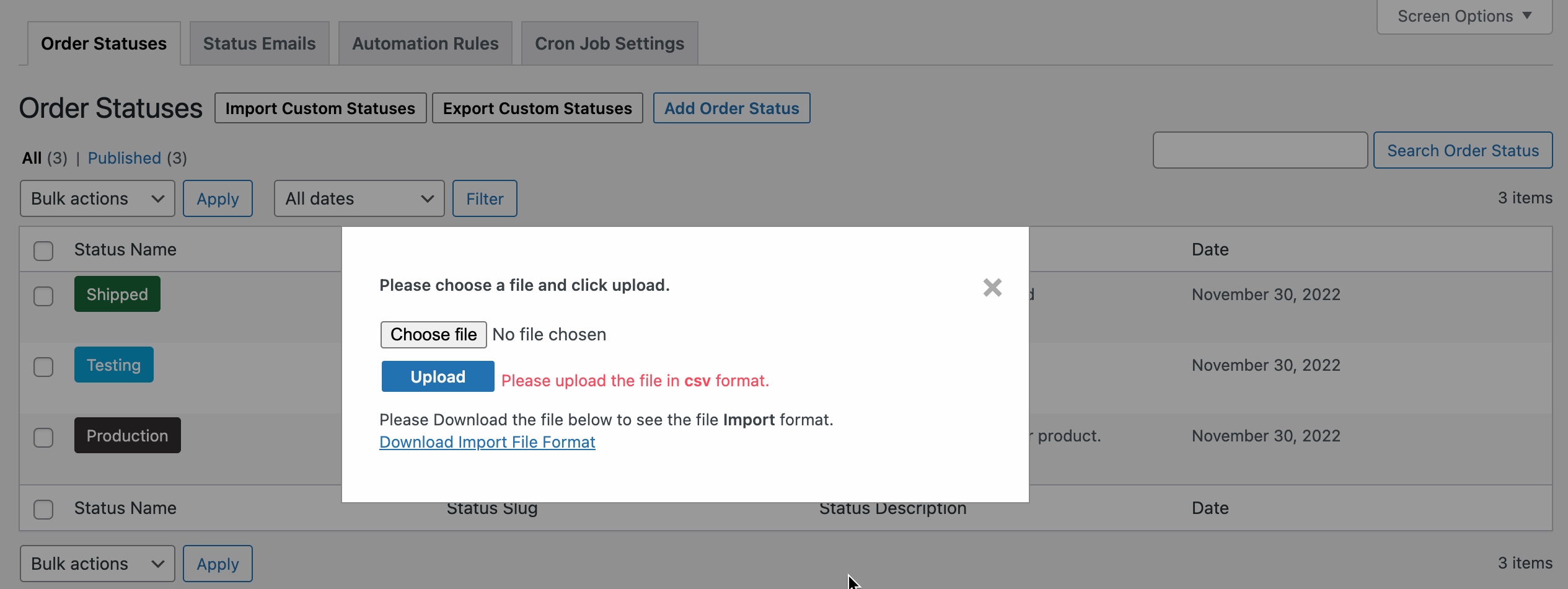
Import export statuses
Instead of adding statuses individually, you can import them in bulk using a CSV file.
Note: You can only import/export statuses along with basic details. You cannot assign them orders using the import feature. Assign statuses to orders manually or by using automation rules.
Assigning Order Statuses
You can manually and automatically assign new status using automation rules.
Assign Order Statuses - Manually
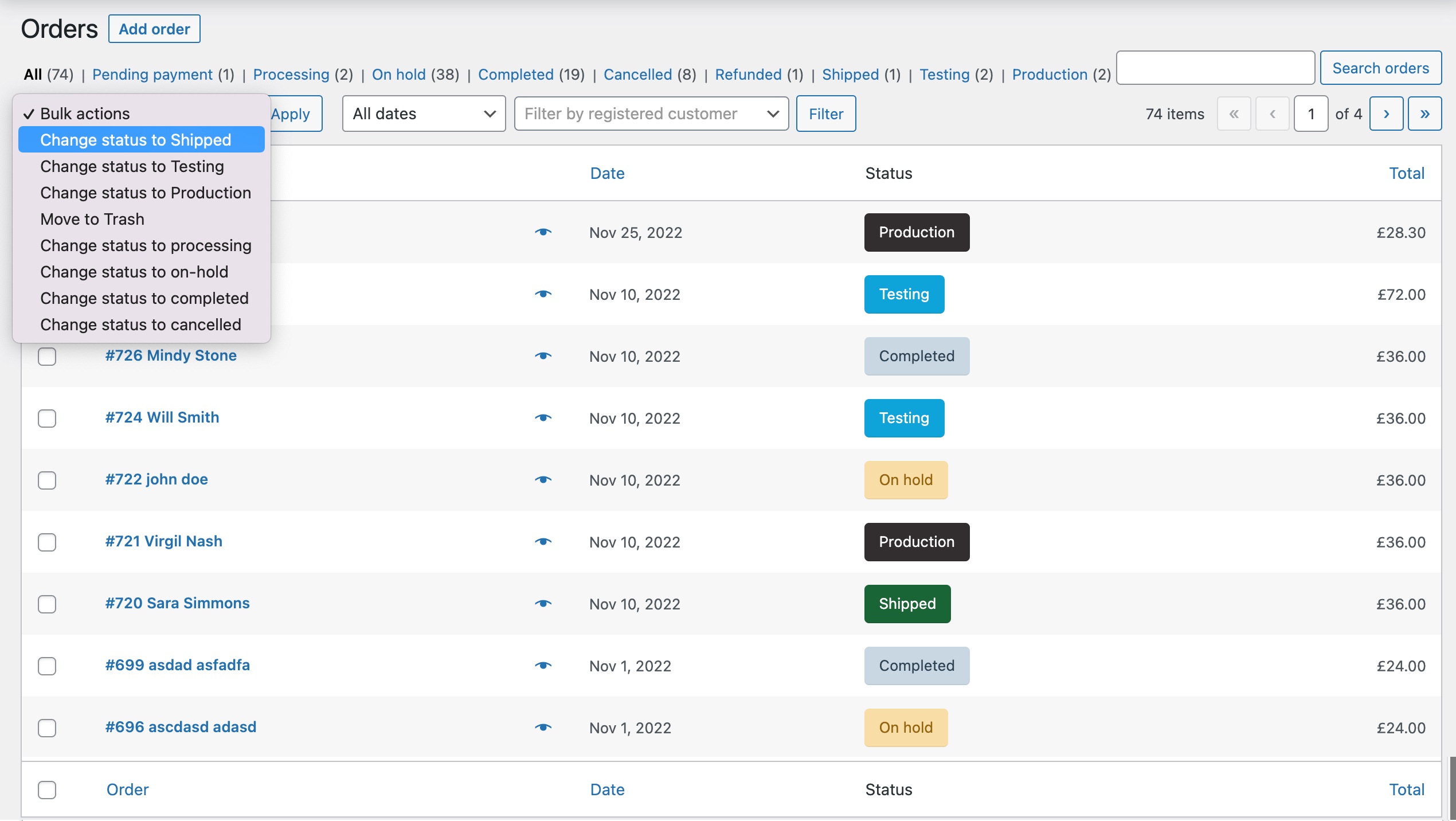
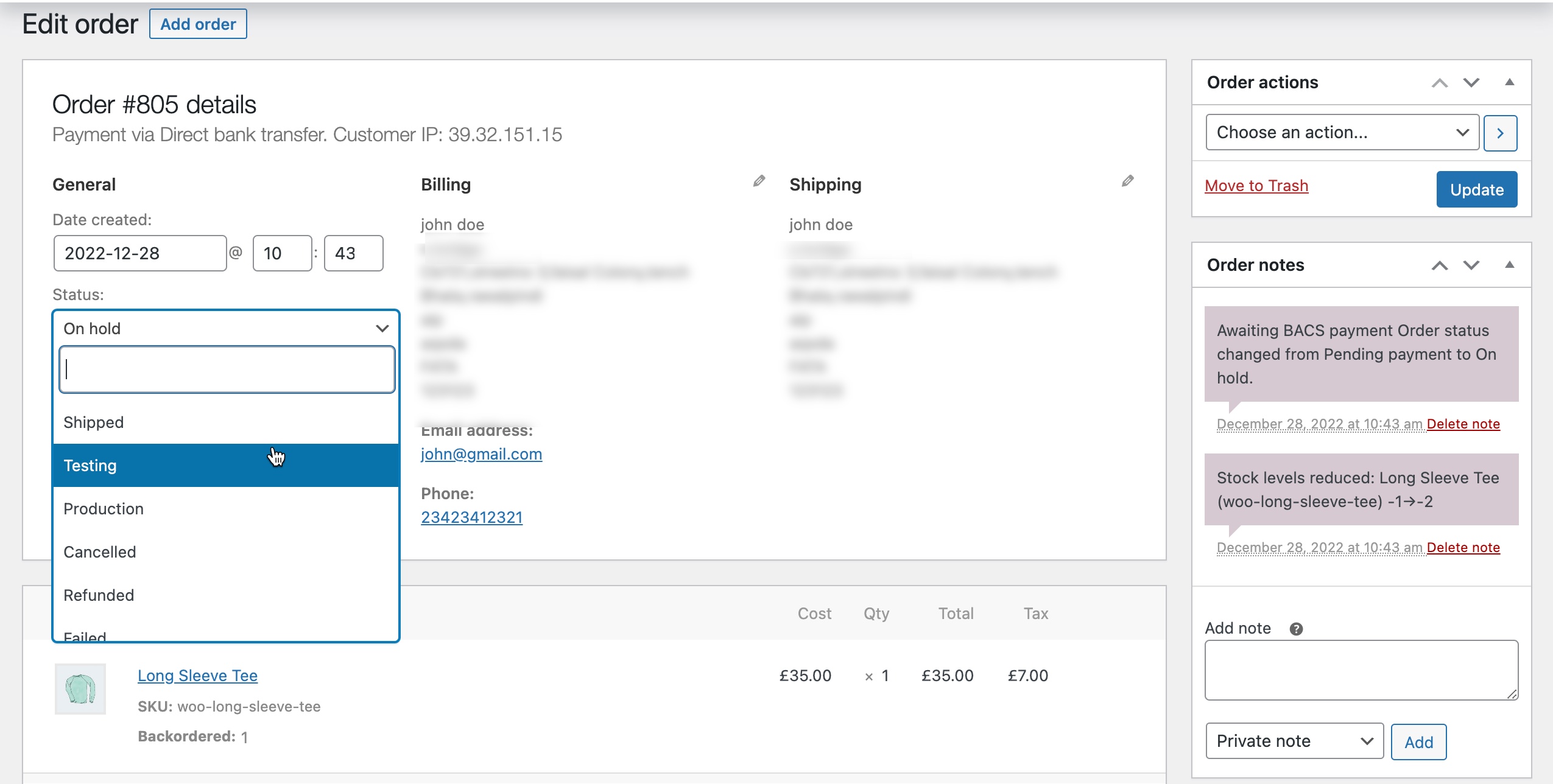
You can assign order status from the admin Orders detail page or using the bulk action on the Orders listing page.
Assign Order Statuses - Automatic
You can create multiple automation rules to assign different statuses to separate orders.
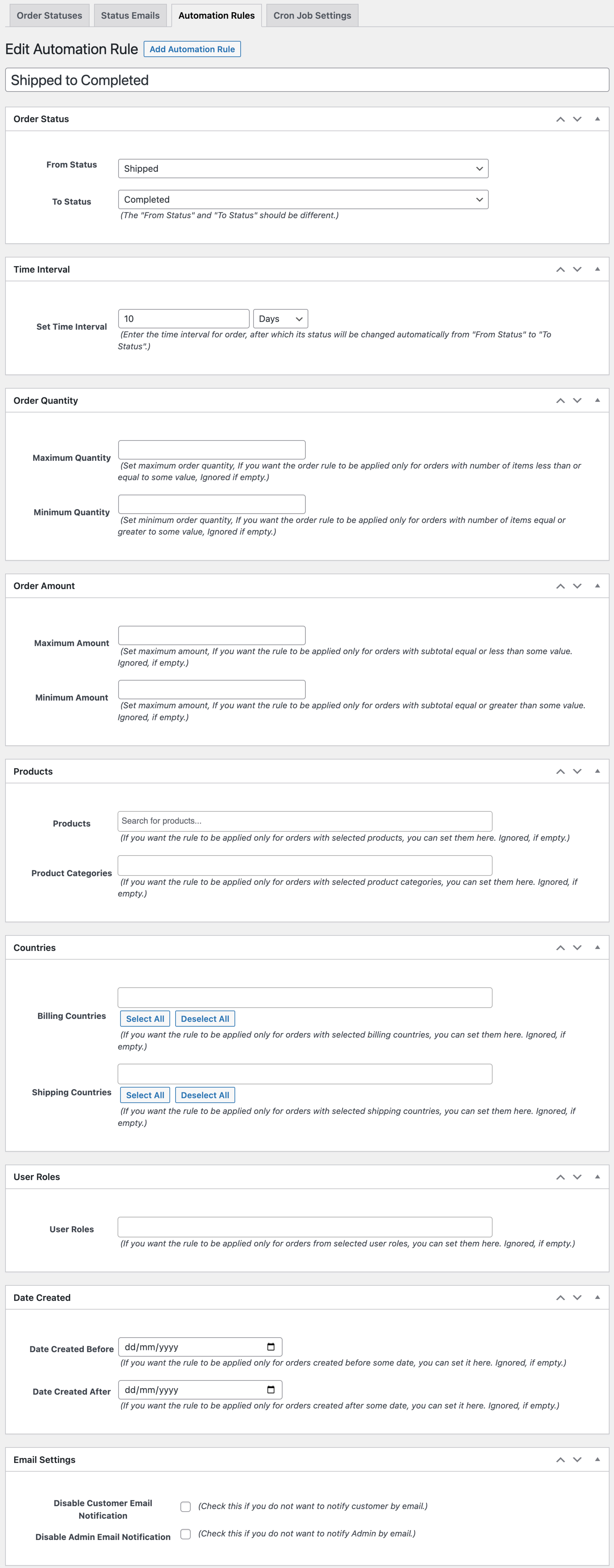
While creating a new automation rule, you can customize the rule with the following options:
Order status - Select current order status and new status to be assigned. The extension will switch the status, it does not assign an additional status.
Condition - Only the orders matching the current status will change to the new status based on the following conditions:
Time Interval - Time passed since placing the order; define the amount of time in minutes, hours or days after before new statuses are assigned.
Order Quantity - Minimum and maximum order quantity ranges to change statuses. As soon as the order moves into the specified range, the status will update.
Order Amount - Minimum and maximum order amount ranges to change statuses. As soon as the order moves into the specified range, the status will update.
Products/Categories - The order includes specific products or categories.
Countries - The order belongs to a specific billing or shipping country.
User Roles - The customers linked to the order have a specific user role.
Order Date - The order creation date falls within a defined range. As soon as the order moves into the defined range, the status will update.
Email Notifications – You can disable email notification for customers and admin.
Please note: the conditions have an AND relation. For example, if you have set the order status to change from "shipped" to "completed" and set conditions to a time internal of 10 days and country is USA, the extension will assign a new order status when 10 days have passed and the order country is USA.
Email Notification
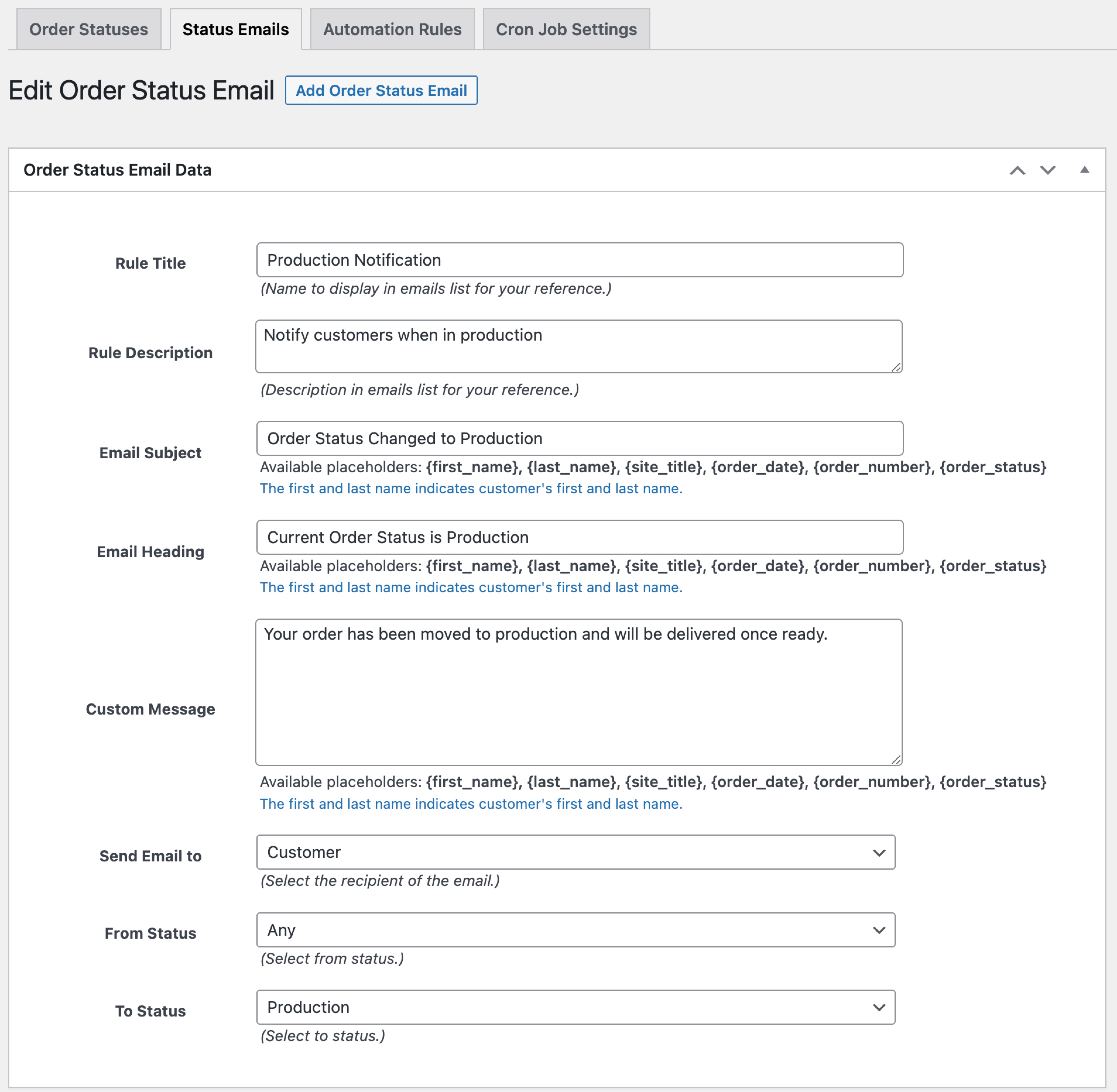
Custom Order Status enables you to create email notification rules to notify customers and the admin for specific status changes. You can create notification rules from WooCommerce > Order Statuses > Status Emails.
While creating new email notification rule, you can:
Set rule title and description for internal use
Customize email subject, heading and message using various variables
Choose to send email to admin or customer
Select current and new status to trigger email
Note: You can customize order statuses email templates for both admin and customers from within WooCommerce > Settings > Emails.
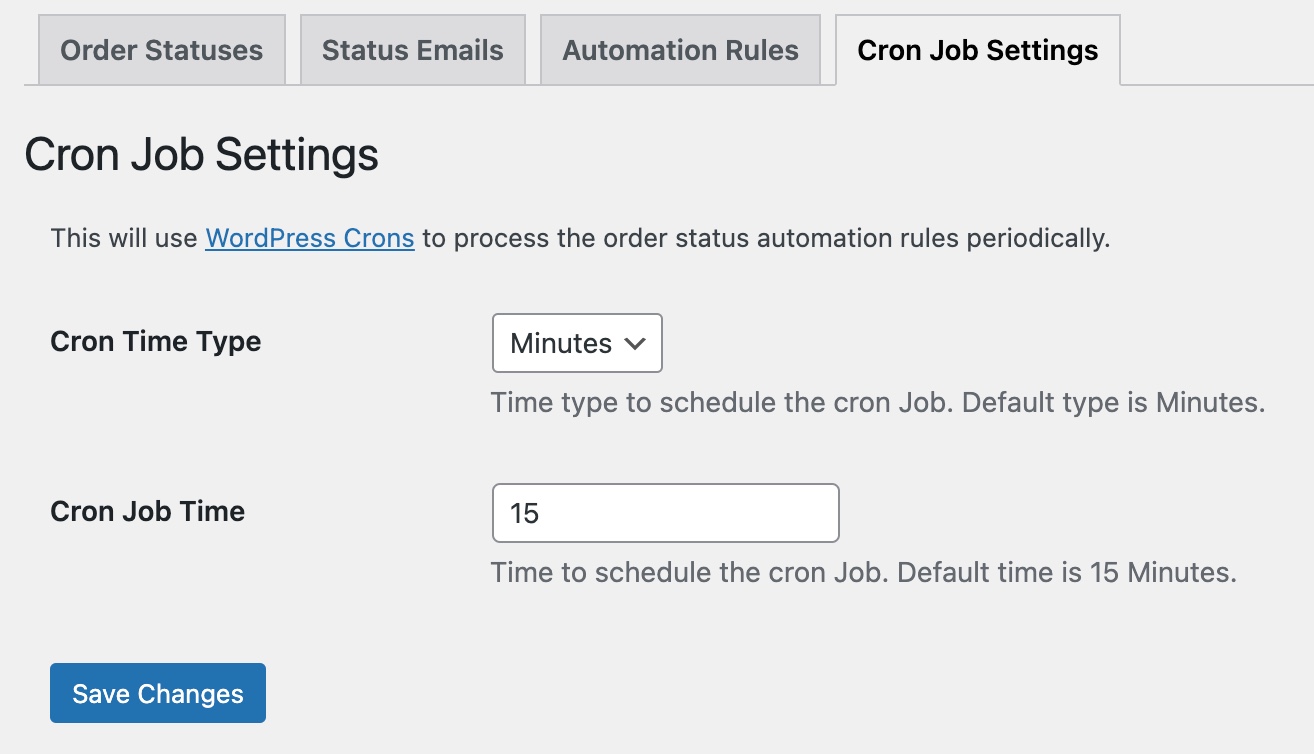
CronJob Settings
Customize cronjob settings to trigger automatic emails and status change rules. Depending on your store orders activity, you can set the cronjob time.
FAQs:
WooCommerce Analytics Not Showing Custom Order Status Data:
By default, WooCommerce Analytics only includes orders with the Processing or Completed status in revenue, sales, and other metrics.
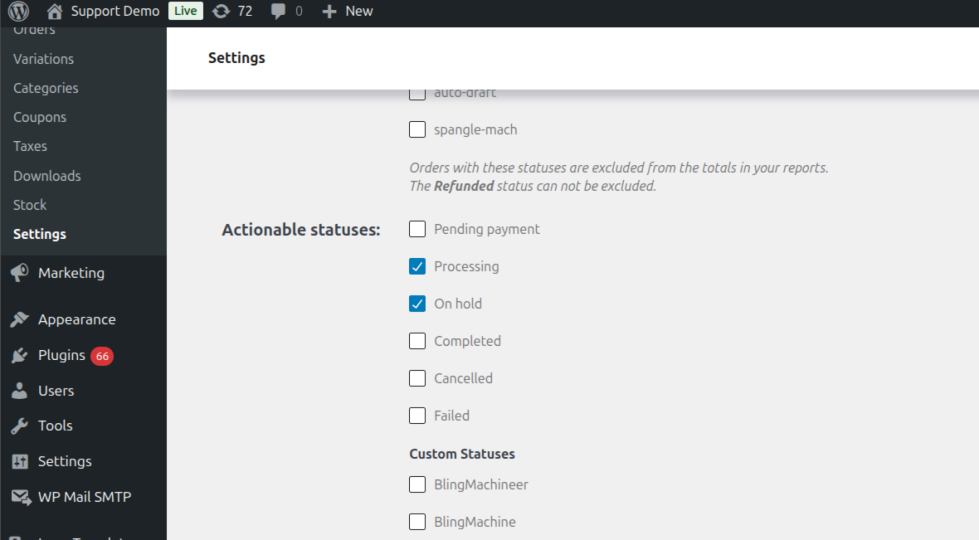
These are considered paid statuses. If you are using a custom order status, it will not appear in analytics unless it is both:
Added to Actionable Statuses – Go to Analytics → Settings → Actionable Statuses and check that your custom status is enabled.
Please make sure that the settings below are enabled in the custom order status rule, and the payment is complete for the order that you want to show in the analytics report.
Once you have confirmed the above:
Go to WooCommerce → Status → Tools.
Click Clear analytics cache.
Re-import historical data to refresh your reports.
 When creating a new custom status, you can:
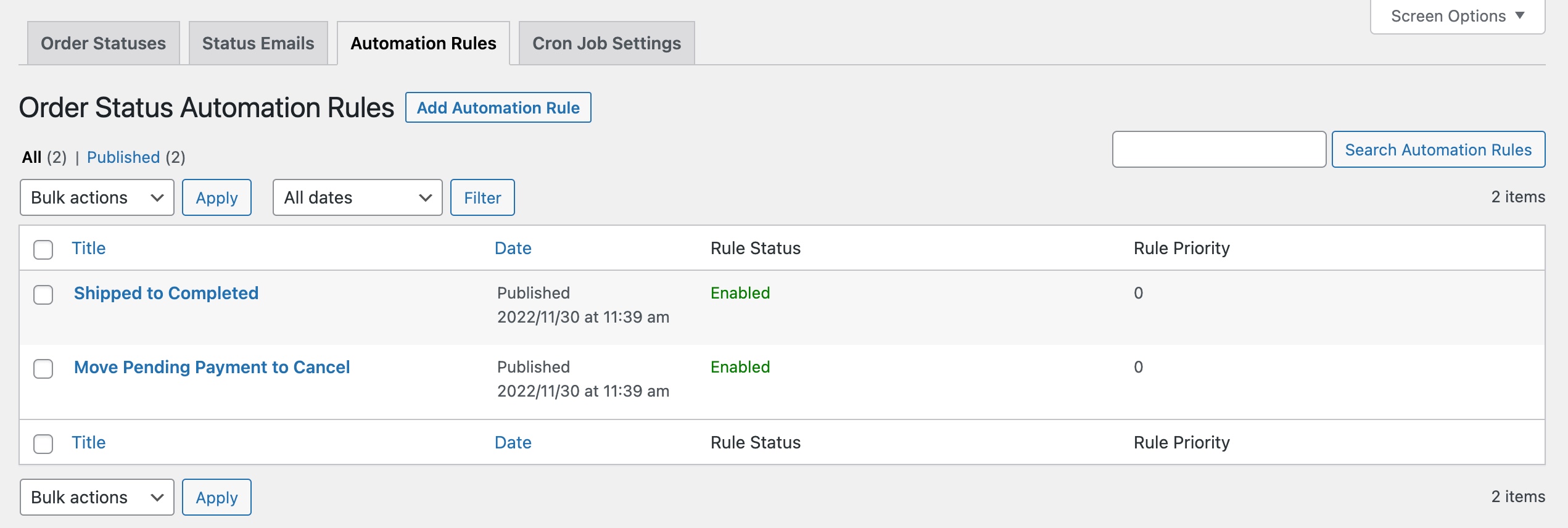 While creating a new automation rule, you can customize the rule with the following options:
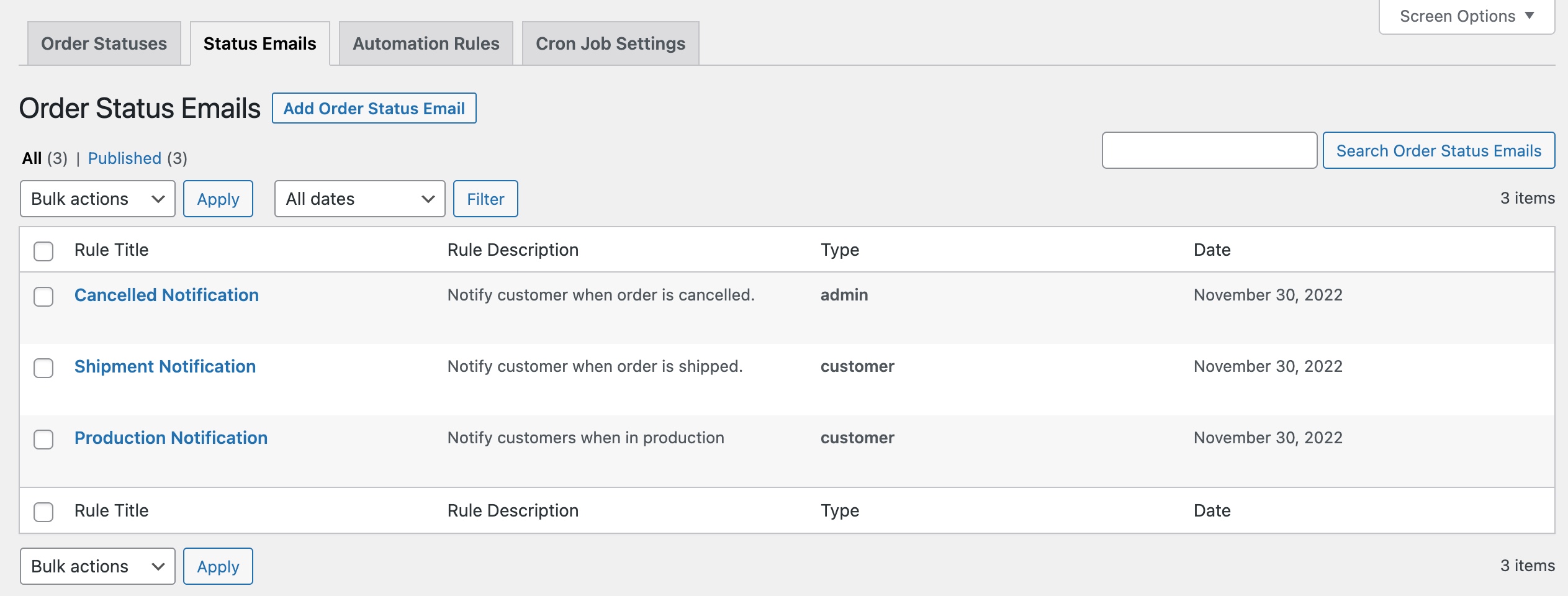 While creating new email notification rule, you can: